


Manage Cost Element Structure
|
|
|
|
This activity helps in creating cost element structure in a simplified manner.
Select the “Manage Cost Element Structure” link under the “Cost Setup” business component.
 - Clicking this icon available
near certain fields takes you to the help page of the respective field.
- Clicking this icon available
near certain fields takes you to the help page of the respective field.
The “Manage Cost Element Structure” page appears.
Enter the following fields in “Cost Element Structure Info” group box:
CE Structure ID |
A unique code identifying the cost element structure. Mandatory. Press <Enter> to view details of the existing CE Structure ID. Ensure the following:
|
Note: To create a new CE Structure ID, give a unique code that is not an existing CE Structure ID.
How to copy details of an existing element
Click the copy from button.
The system displays the “Copy From” window.
Enter the details in the fields and click the “Copy” pushbutton.
The system copies the details of the given CE Structure to the “Manage Cost Element Structure” screen. The user can enter a unique CE Structure ID and save the CE Structure copied.
Enter the following fields in the “Cost Element Structure Info” group box:
Description |
A unique description of the Cost Element Structure. Mandatory. |
Status |
Use the drop down list box to select the status of the Cost Element. The system lists the following options:
Ensure that schedule to cost element mapping exists for at least one record for the given CE Structure ID and all the Formulae are defined for the CE Structure ID if “Active” is selected in this field. By default the system displays “Fresh” in this field. |
How to create layout information for the CE Structure ID
In this section, the layout of the Cost Element Structure can be given or modified from the layout multiline. On creation of a new CE Structure, the details are reflected in the tree structure. Using this tree structure you can add, modify or rearrange elements within a group.
Click
the  tab
to view the Layout Section with tree the structure displaying the
elements as nodes with check boxes.
tab
to view the Layout Section with tree the structure displaying the
elements as nodes with check boxes.
Note: When you select a parent node in the tree, the child nodes will be automatically selected. You can deselect the desired child nodes, without deselecting the parent node. On clicking the parent node, the selected elements are listed in the adjacent multiline.
Layout Tree Structure
The system displays the tree in an expanded format with all its child nodes up to the Schedules level for the corresponding CE Structure ID.
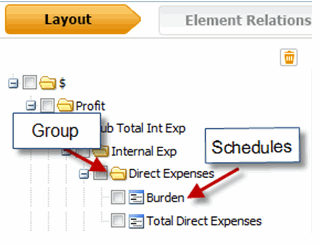
Note: The system does not display the tree structure while in create mode.
Note: You can add, modify or rearrange the elements within a group.
Select the group in the layout tree structure to view details of all the schedules under that group in the layout multiline.
The system displays the relevant path in the Layout tree structure that was selected.
Enter or modify the following details in the layout multiline:
Seq. # |
The order in which elements are to be displayed in the Report. Mandatory. Ensure that the value specified in this field is a unique sequence number for the given CE Structure ID in the multiline. |
Element |
The description of the schedule. Mandatory. |
Element Type |
Use the drop-down list box to select the nature of the element to which the Cost Elements are mapped. Mandatory. The system lists the following options:
Ensure the following:
By default the system leaves this field blank. |
Display? |
Use the drop-down list box to specify whether the element must be displayed in the document. You can select from the options “Yes” or “No”. Ensure that for the given CE Structure ID, “Yes” is selected at least one element. The system displays “Yes” by default in this field. |
Parent Element |
The group to which the element is classified. |
The system displays the following fields in the multiline:
Variable |
The identification of the row for defining formulas. |
Formula |
The formula for the element, which could be Fx-Not Defined if the formula is not defined. |
Click the hyperlinked value to launch create formula screen to define a formula for the element.
Enter the following fields in the multiline:
Element Nature |
Use the drop-down list box to specify the natural balance of the Element. The system lists the following options:
Note that this column is applicable for groups and schedules. By default the system leaves this field blank. |
Reverse Sign? |
Indicates whether the arrived value for the row is multiplied by -1. The system displays “No’ by default in this field. |
Format |
Use the drop-down list box to specify the format in which the element must be displayed in the Report. The system lists the following options:
By default the system leaves this field blank. |
The system displays the following fields in the multiline:
Formula Display |
Indicates the formula defined for the line in the multiline. |
Click the “Save” pushbutton to save details of the layout information for the CE Structure ID.
Note: Ensure that all the formulas are defined for the CE Structure ID if status is specified as “Active”.
The system performs the following:
Updates the status of the CE Structure as “Active” only if atleast one Schedule - Cost Element mapping exists and all the formulas are defined for the CE Structure ID, else the system updates the status as “Fresh”.
How to map elements to schedules
In this section, you can map cost elements to the Elements which are of type “Schedule”. You have the option to do this at multilevel also. You can view the Cost Elements that are mapped to the Schedule in the Element Relationship tree.
Prerequisite
Details must be saved in the Layout information tab.
Note: Cost Elements can be mapped only to the Schedule that is selected in the Schedule drop-down list box.
Click the
 tab
to map Cost Element to the schedules.
tab
to map Cost Element to the schedules.
The system defaults the following only if the selected Node has Element Type as “Schedules”
Defaults the Schedules drop-down list box in the multiline section with the selected schedules
Retrieves the Cost Elements that are mapped to the schedules in the multiline section
Element Relationship Tree Structure
The system displays the tree in an expanded format with all its child nodes up to the level in which the Cost Elements are mapped to the Schedules for the corresponding CE Structure ID.
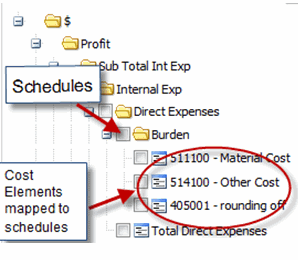
Click on a schedule in the tree to view details of the cost elements mapped to the schedule. displayed in the adjacent multiline.
Note: You can add / delete the cost elements within a group.
Select the group in the layout tree structure to view details of all the schedules under that group in the layout multiline.
The system retrieves the element relationship details of all the mapping between the corresponding CE Structure and the Schedules.
Enter the following details in the "Element Relationship" multiline:
Schedules |
Indicates the schedules to which the Cost Element can be mapped. Ensure that the value entered in this field is a valid element of type “Schedule” in the CE Structure. Note that this column is displayed only if ‘All Schedules’/’Unmapped’ are selected in the Schedules drop-down list box. |
Click the “Get” pushbutton to retrieve the details of the Cost Elements mapped to the schedule selected.
The system performs the following:
Displays details of all the Cost Elements for the login OU company if "All" is selected in the “Schedule” drop-down list box.
Displays the Cost Elements that are not mapped with any of the Schedules and their description if “Unmapped” is selected in the “Schedules” drop-down list box
Displays the Cost Elements that are mapped to the selected Schedule if a 'Schedule' is selected in the “Schedules” drop-down list box.
Enter the following field in the Element Relationship multiline:
Cost Element |
A unique code identifying the cost element. Data entry in this field is mandatory if a value is specified in the “Schedules” field. Ensure the following: The value entered in this field is a valid cost element in active status as defined for the login OU. The value entered in this field is not mapped against any other schedule. |
The system displays the following fields in the multiline:
Description |
A brief description of the Cost Element. |
Click the “Save” pushbutton to save details of the element schedule relationship for the CE Structure ID.
The system displays the following:
Created By |
The login user who created the Cost Structure Element. |
Created Date |
The date on which the Cost Structure Element was created. |
Modified By |
The login user who modified the Cost Structure Element. |
Modified Date |
The date on which the Cost Structure Element was modified. |
