


|
|
|
|
|
|
This page allows you to change the parent location of an existing location. Tell me more
Select the “Change Parent” link at the bottom of the main page.
The “Change Parent” page appears.
The system displays the following fields:
|
System |
The system, to which the location for which the parent location must be changed, belongs. |
|
The description of the system is displayed alongside. |
|
|
Zoom facility available. |
|
|
Apex Loc. |
The location at the first or top-most level in the hierarchy as specified in the “Define Other Systems” page. |
|
The description of the apex location is displayed alongside. |
|
|
Zoom facility available. |
Enter the following field:
|
Parent Loc. |
Use the drop-down list box to select the location to display its child locations. The system displays the apex location in this field, when the page is launched for the first time. Subsequently, when the "Next" pushbutton is clicked, the system lists all the locations attached to the hierarchy at the level displayed in the “Current level” field. The locations are listed in the alphabetical order and the first location is displayed by default. You can select a location and retrieve the child locations defined for it. |
|
The system displays the following field: |
|
|
Current Level |
The level number assigned to the location that is displayed in the “Parent Location” field. |
The system displays the following fields in the “Child Locations” multiline:
|
Child Loc. |
The location for which you wish to change the parent location. |
Note: You cannot change the parent of the location if plans and proposals have been defined for it and the “Allow Change Of Parent?” field is set to “No” in the “Set Option” activity.
|
Desc. |
The description of the child location. |
Enter the following field in the “Child Locations” multiline:
|
New Parent |
The new parent location of the child location (Alphanumeric, 30). Ensure that, |
|
|
|
|
|
|
|
Press <Enter>. The system retrieves the “Description” field in the multiline. |
|
Click here for a graphical representation of the Do’s and Don’t’s, while changing the parent location.
The system displays the following field in the “Child Locations” multiline:
|
Desc. |
The description of the location entered as the parent location. |
Click the “Save Changes” pushbutton, to update the changes made.
Note: The system detaches the child location along with its subsequent children, from the old parent location to the parent location specified in the “Parent Location” field.
Click the "Next" pushbutton, if you wish to traverse to the next level in the hierarchy.
The system fills the “Parent Location” drop-down list box with all the locations defined at the next level in the hierarchy.
Click the "Previous" pushbutton, if you wish to traverse to the previous level in the hierarchy.
The system fills the “Parent Location” drop-down list box with all the locations defined at the previous level in the hierarchy.
The system displays the following fields in the “Record Statistics” group box:
|
Created By |
The login ID of the user who created the system. |
|
Created Date |
The date and time on which the system was created. |
|
Last Modified By |
The login ID of the user who last modified the system. |
|
Last Modified Date |
The date and time at which the system was last modified. |

Changing parent location – An overview

There are four ways by which you can access this page:
From the “Create Location” activity, where the system allows you to move a location from one parent to another in the primary system.
From the “Edit Location” activity, where the system allows you to move a location from one parent to another in the primary system.
From the “Define Other Systems” activity.
From the “Define Primary System” activity, where the system allows you to change the parent location of a location belonging to the primary system.
When the parent location is changed for a particular child location, the system detaches the child location along with its subsequent child locations and attaches it to the new parent.
Figure - Parent-child relationship in a location system
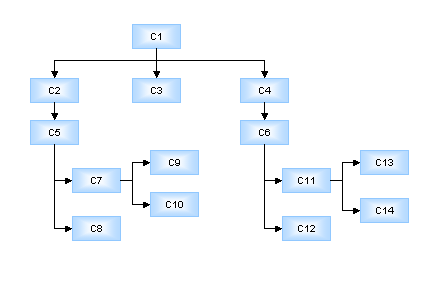
You can change the parent of location “C7” to location “C14”. You cannot however attach “C7” to “C9” or to “C10”. The system detaches “C7” from “C5” and attaches it to “C14” along with “C9” and “C10”.
Figure - Do's and Don'ts while changing parent

Create Location.
Define Primary System.
Change the parent location of a child location
Change the parent location of a child location
You can change the parent location of a child location in the location hierarchy.
Select the parent location for which for which you wish to retrieve the child locations, in the “Parent Location” drop-down list box.
The system retrieves the child locations attached to the parent location in the “Child Locations” multiline.
Enter the new parent of the child location in the “New Parent” field in the “Child Locations” multiline.
Click the  or
or  pushbuttons, to retrieve child locations attached at various levels in the hierarchy, to change the parent locations.
Click the “Save Changes” pushbutton, to update the new parent details.
The system detaches the child location along with its subsequent child locations, from the old parent location to the new parent location.