


|
|
|
|
|
|
You can create systems in this page. Tell me more
Select the “Define Other Systems” link under the “EAM Maintenance Organization” business component.
The “Define Other Systems” page appears.
Enter the following fields in the “Systems” multiline:
|
System Code |
A unique identifier for the system (Alphanumeric, 30) Mandatory. This field can be a combination of characters and digits and cannot be left blank. |
|
Desc. |
The textual description of the system (Alphanumeric, 150). |
|
Apex Loc. |
The location for which the hierarchy must be defined (Alphanumeric, 30). Mandatory. This location is considered to be at the first level in the hierarchy of locations. Ensure that the location has already been defined in the “Create Location” activity and is in the “Active” status. You cannot modify this field, if you have specified a child location for this location. |
|
Status |
The status of the location system. The system provides the options “Active” or “Inactive”. Set the status to “Inactive”, if you wish to disable the system from any further reference in other activities. The system sets the field to “Active”, if the field is left blank. |
|
Remarks |
Any additional information about the system (Alphanumeric, 255). |
The system displays the following fields in the multiline:
|
Last Mod. By |
The login ID of the user who last modified the system. |
|
Last Mod. Date |
The date on which the system was last modified. |
|
Last Mod. Time |
The time at which the system was last modified. |
|
Created By |
The login ID of the user who created the system. |
|
Created Date |
The date on which the system was created. |
|
Created Time |
The time at which the system was created. |
Check the box in the “Select” column of the multiline to select the system, which you do not wish to create, or to define its hierarchy.
Click the Delete icon in the tool bar above the multiline, to delete the system that you do not wish to create.
Note: You cannot delete a system that is already created.
Click the “Save” pushbutton, to create or update the modified details of the system.
Check the box in the “Select” column of the multiline, to select the system for which you wish to define the hierarchy, or to change its parent location.
To proceed, carry out the following
Select the “Build Hierarchy” link at the bottom of the page, to define the hierarchy for the selected system.
Select the “Change Parent” link at the bottom of the page, to change the parent of the system.

Defining Other Systems – An overview

You can create a system with a unique code and provide a description and status for it.
An apex location must be specified for every system that you create. The apex location is considered to be the location at the first or the top most level in the hierarchy of locations. You can also specify any additional information about the system. The following diagram depicts a typical location system.
Figure - Typical location system
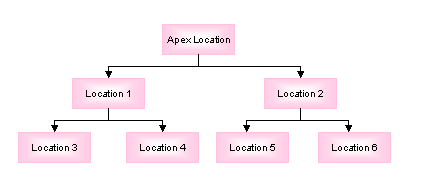
You can also modify the details of a location structure that is already defined. Details such as the description of the location structure, status, and remarks can be modified.
Create Location.
Define various location systems
Define various location systems
You can define location systems based on any user-defined criteria.
Enter a code for the system in the “System Code” field in the multiline.
Specify the apex location in the “Apex Location” field.
Set the status of the system to “Active” or “Inactive”.
Click the “Save” pushbutton, to create or modify the systems.